How to Use PixDirector®: Make 1–2 Minute AI Videos
Step-by-step guide with screenshots: make 1 or 2 minute AI videos with PixDirector®, with AI Auto or a model you pick, confirm the price, and extend a finished film up to 4 minutes.
PixOne Team6 min read
Most AI video models stop after 5 to 15 seconds. PixDirector® turns one prompt into a 1 or 2 minute film: it writes the story as a series of scenes, generates each clip from the last frame of the previous one so the characters stay the same, and joins everything into one video. You pick the length, confirm the price, and PixDirector® does the rest.
The short version
Select an image, choose Animate or Scene from Refs, write what happens, press send and pick 1 min or 2 min under the PixDirector® label. Check the price, press Start. Nothing is charged until you confirm.
Where to find it
Tools: Animate (photo to video) and Scene from Refs (video from reference images).
Lengths: 1 min or 2 min for a new film. A finished video can be extended by +1 or +2 min, up to 4 minutes in total.
Plans: every paid plan and credit pack. Free accounts see the options locked.
Option 1: AI Auto (Smart Select picks the model)
This is the easiest way and the one we recommend. AI Auto reads your story and your image, then picks the model that fits it best for the whole film.
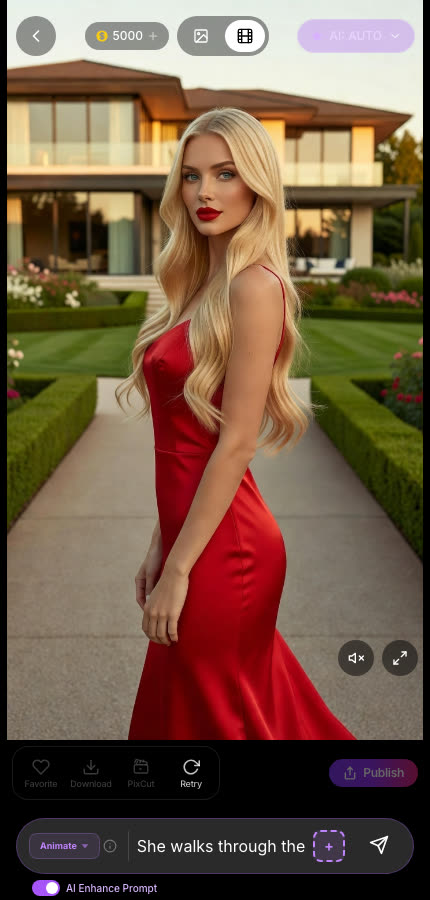
Write the story. Select your image, keep the model on AI Auto, choose Animate and describe what happens from start to finish. A few actions in order work best.
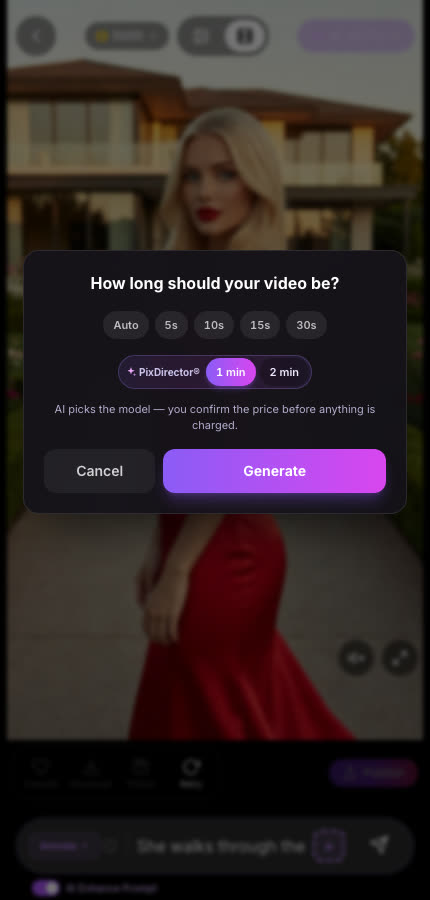
Pick the length. Press send. In “How long should your video be?”, choose 1 min or 2 min next to the PixDirector® label, then press Generate.
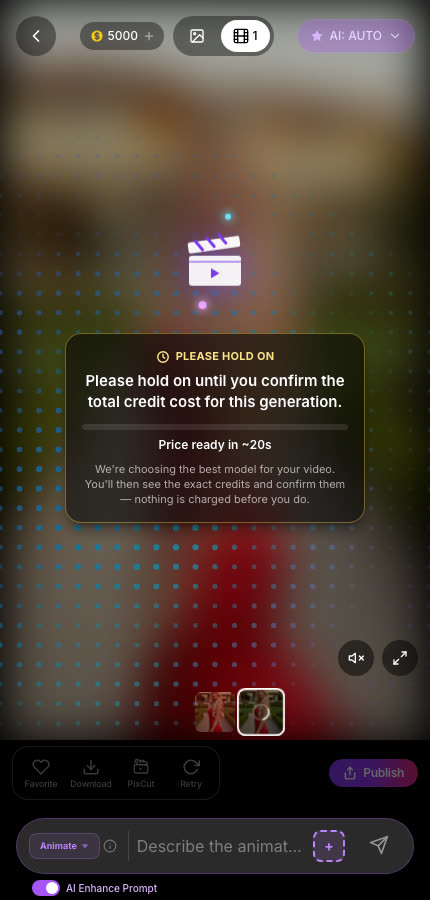
Wait for the price. AI Auto takes about 20 seconds to choose the model and plan the clips. Nothing is charged during this step.
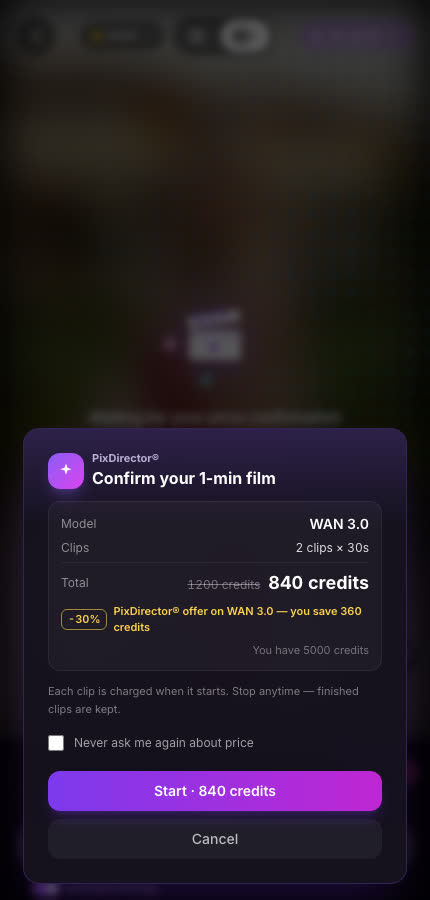
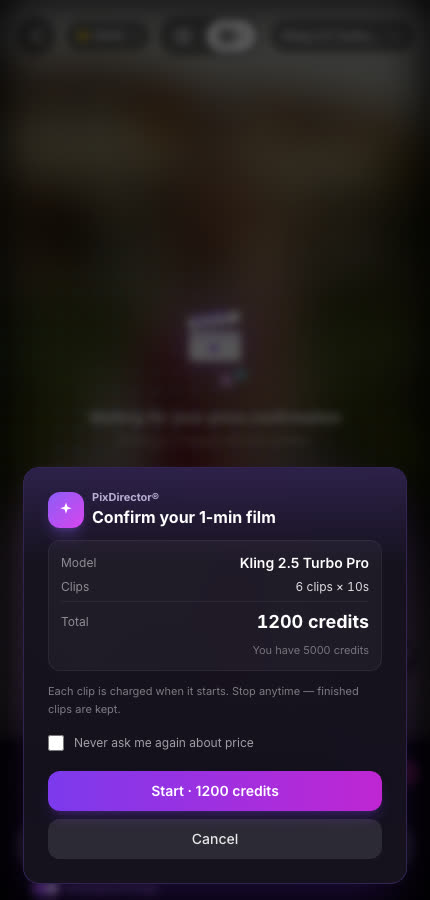
Confirm the price. You see the model, the number of clips and the total in credits. Press Start to begin, or Cancel to drop it.
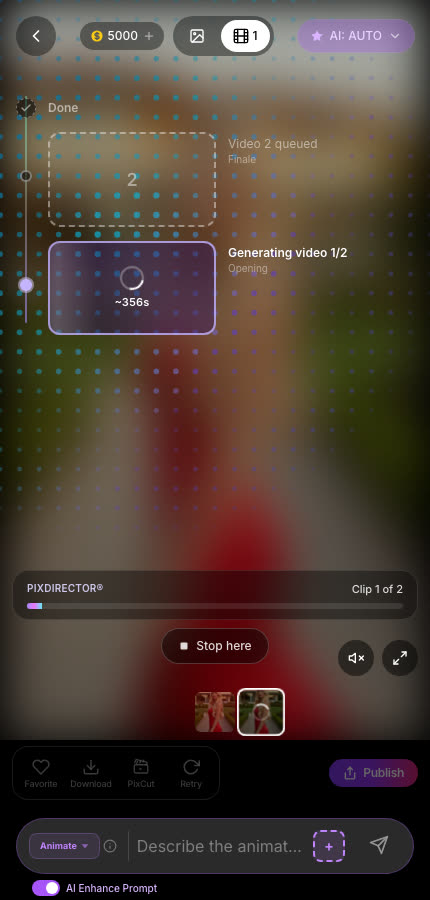
Watch it build. The timeline shows every clip as it is made. Press Stop here at any time to keep what is finished.
1. Write the story with AI Auto on2. Pick 1 min or 2 min3. AI Auto picks the model4. Confirm the price5. Watch each clip being made
Option 2: Pick the model yourself
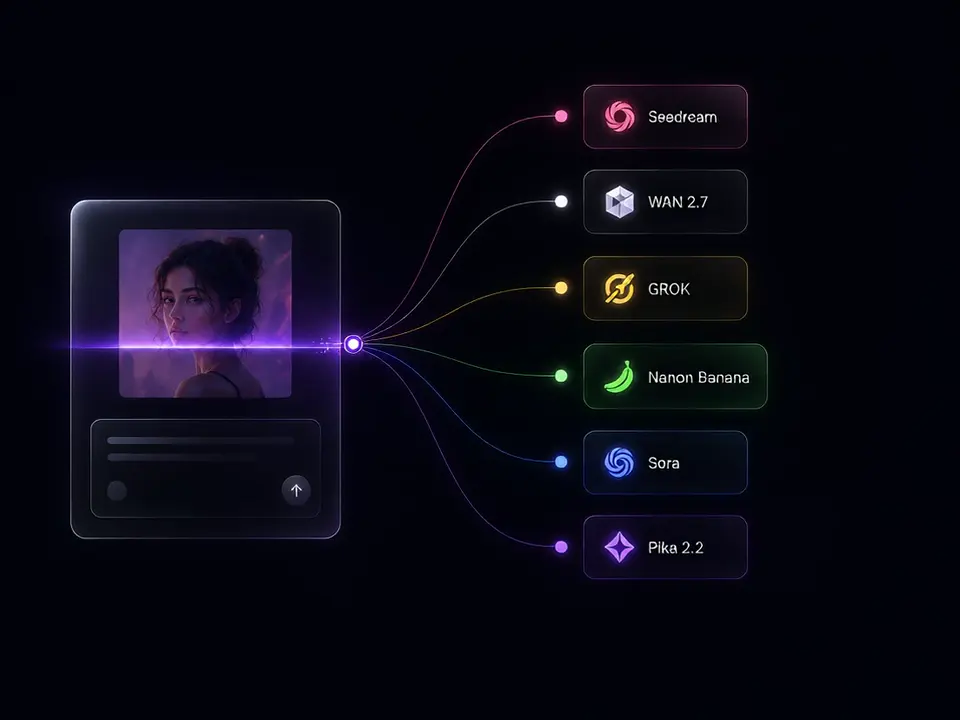
Prefer a specific look? Open the model picker and choose any model that supports the tool. PixDirector® then builds the whole film with that model.
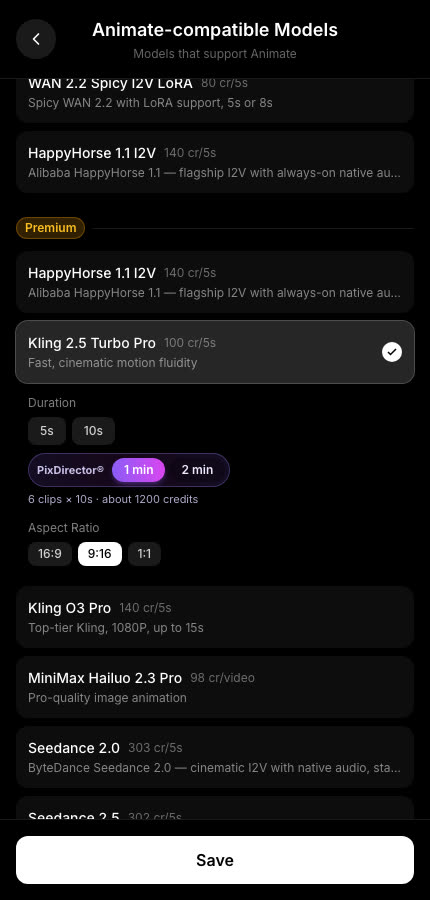
Choose the model and the length. Tap the model name, pick a model, and under Duration choose 1 min or 2 min next to the PixDirector® label. Only the lengths that model can reach are shown. The line below shows the clip plan and the price, for example “6 clips × 10s · about 1200 credits”. Press Save.
Press send and confirm the price. You already chose the length, so PixDirector® doesn’t ask again: the price confirmation opens right away (no model to choose, no wait). Check the model, clips and total, then press Start.
1. Pick a model, then 1 min or 2 min2. Press send: the price opens right away
Make a finished video longer
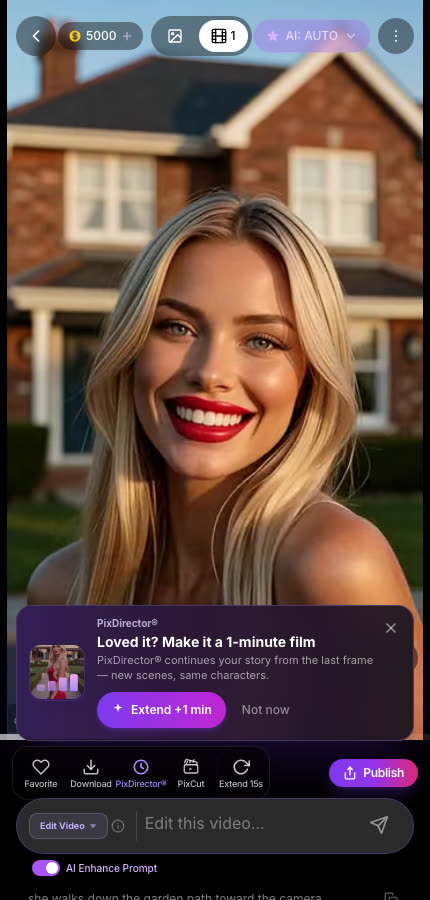
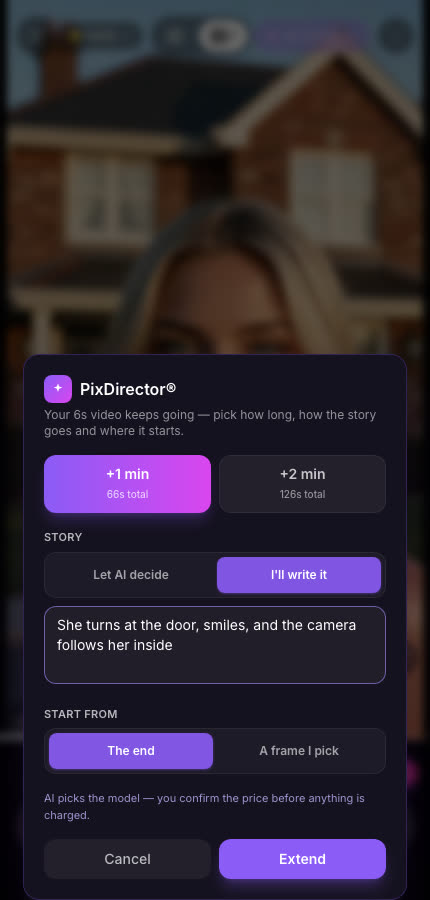
Loved a video? Make it longer without starting over. After a video finishes, tap Extend +1 min in the suggestion card, or the PixDirector® button under the video.
Pick how much to add: +1 min or +2 min (up to 4 minutes in total).
Choose the story: “Let AI decide” continues naturally, or “I’ll write it” lets you say what happens next.
Choose where it starts: from the end of the video, or from a frame you pick.
Press Extend and confirm the price, as above.
Tap Extend +1 min or the PixDirector® buttonChoose the length, story and start point
Price and billing
You always see the price first. Nothing starts and nothing is charged until you press Start. Tick “Never ask me again about price” to skip this step next time.
The price waits for you. If you leave before confirming, the confirmation stays for up to 8 hours in the same browser and opens again when you return to the project.
Pay per clip. Each clip is charged when it starts. Stop at any time and the finished clips are kept.
Failed clips are refunded automatically.
WAN 3.0 is 30% off inside PixDirector®. Look for the “30% OFF with PixDirector®” badge on the WAN 3.0 card in the model picker. The confirmation shows the regular price crossed out and how much you save.
Tips for better films
Write a sequence, not one moment. “She walks through the garden, opens the front door, and steps into a candle-lit party” gives PixDirector® clear scenes to build.
Start from a strong image. The first frame sets the face, outfit and place for the whole film, so finish the still first.
Start with 1 minute. If you like it, extend it instead of starting a new 2 minute film.
You can leave the page. Once confirmed, the film keeps being made on our servers.
Not sure which model to use?
Keep AI Auto on. It picks the best model for the story and the image, and you still see and confirm the exact price before anything is charged.
A new film is 1 or 2 minutes. You can then extend a finished video by another 1 or 2 minutes, up to 4 minutes in total.
Do I have to use AI Auto?
No. Pick any compatible model yourself in the model picker and choose 1 min or 2 min under the PixDirector® label. If a model cannot reach a length, that length is not offered. When you press send, the length is not asked again; you go straight to the price confirmation.
When am I charged?
Each clip is charged when it starts, never before you confirm the price. Stop at any time and you only pay for the clips already started; finished clips are kept. Clips that fail are refunded automatically.
What if I leave before confirming the price?
Nothing is charged and nothing starts. The price stays waiting for up to 8 hours in the same browser: come back to the project and the confirmation opens again.
Can I close the page while the film is being made?
Yes. Once you confirm, PixDirector® keeps working on our servers. Come back to the project later to watch the finished film.
Is PixDirector® available on the free plan?
No. PixDirector® is part of every paid plan and credit pack. Free accounts see the 1 min and 2 min options locked.
Try it free — 75 credits on signup
Generate images and videos with 80+ models. Smart Select picks and configures the right one for your prompt. No credit card required to start.