Turn a still image into an AI video with controlled motion, camera direction, optional end frames, and a reliable progressive workflow.
PixOne Team8 min read
The best image-to-video results begin with a finished still image. Animation models are strongest at motion, not at repairing unresolved faces, clothing, anatomy, or composition. Build the image first, then ask the video model for a clear movement.
The creator rule that improves almost every result
Create the character, compose the scene, refine clothing and pose, and confirm the face before selecting Animate. Begin with restrained motion. If that works, retry from the same still with a more ambitious action instead of rebuilding everything at once.
What is AI image-to-video animation?
AI image-to-video animation turns the selected frame into a moving clip. The image supplies identity, appearance, composition, and setting; the prompt supplies subject movement, environmental motion, and camera behavior. An optional end frame can define where the clip should finish.
When to use it
Adding natural facial, body, hair, fabric, or environmental motion.
Creating cinematic camera moves from a finished key image.
Turning composed characters or edited portraits into short social clips.
Animating between a start image and a specific final image.
How to use AI image-to-video animation in PixOne
Finish the still image. Correct identity, clothing, anatomy, pose, background, and framing before animation.
Select Animate. Choose the final image and open Animate from the Tools picker.
Describe motion, not appearance. Explain what moves, how quickly, and what the camera does.
Optionally add an end frame. Attach a second image when the clip must converge on a known final composition.
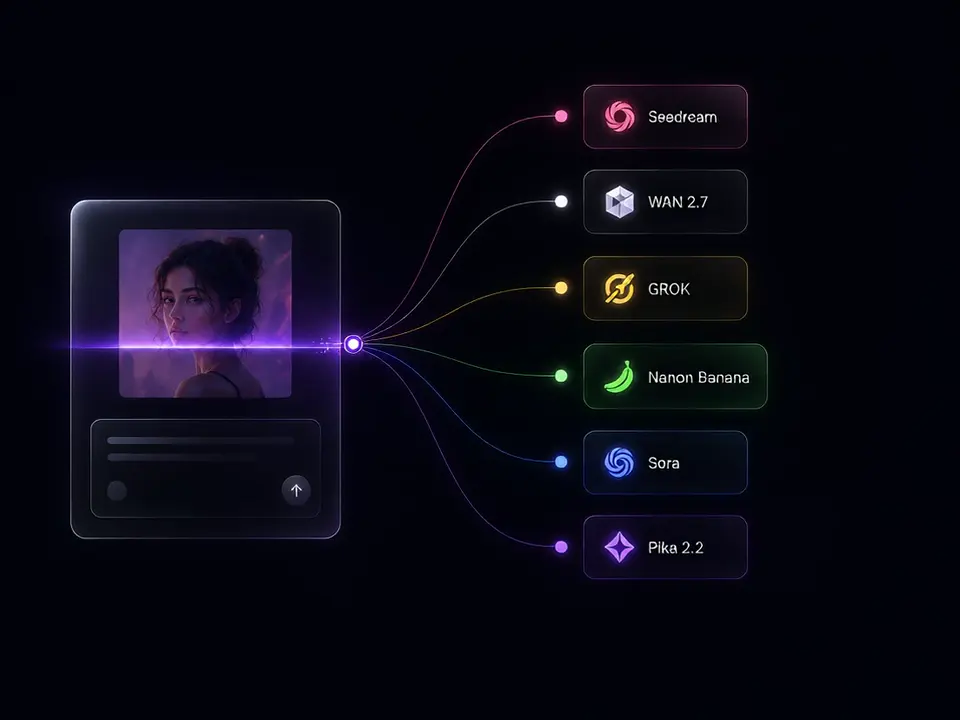
Keep Smart Select on and generate. PixOne evaluates motion, identity, content, duration, and compatible models.
See it in action
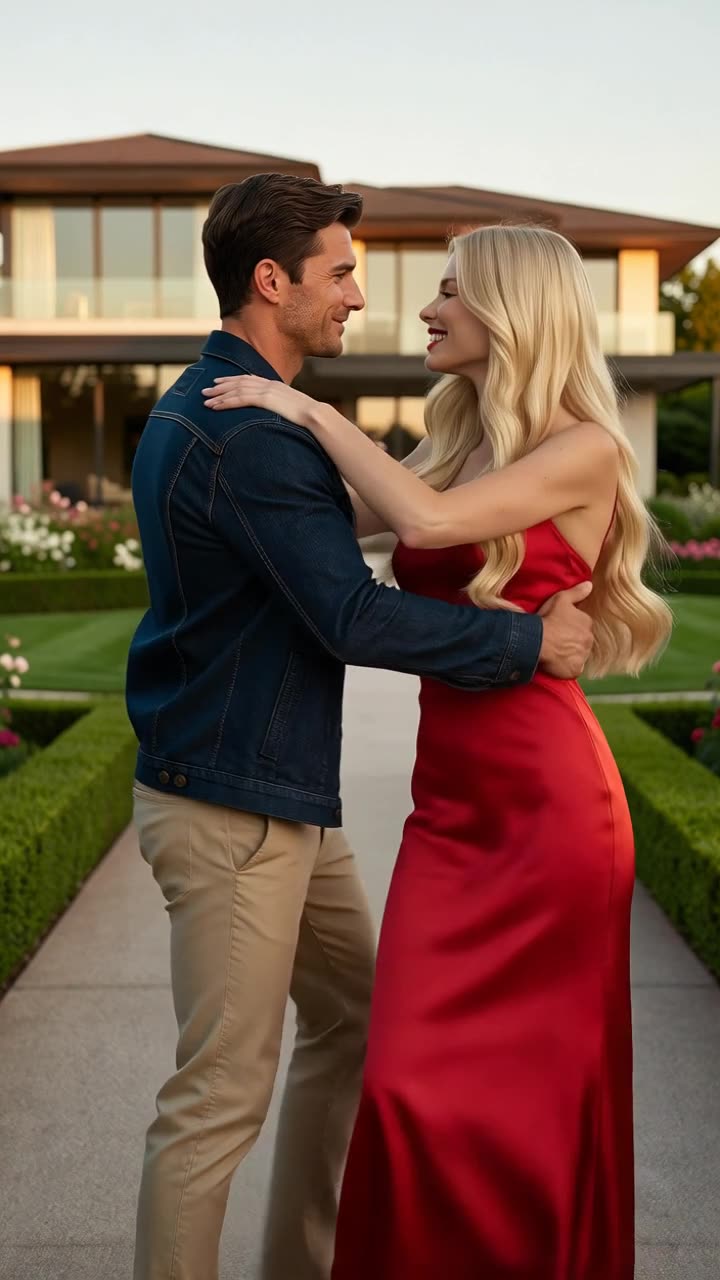
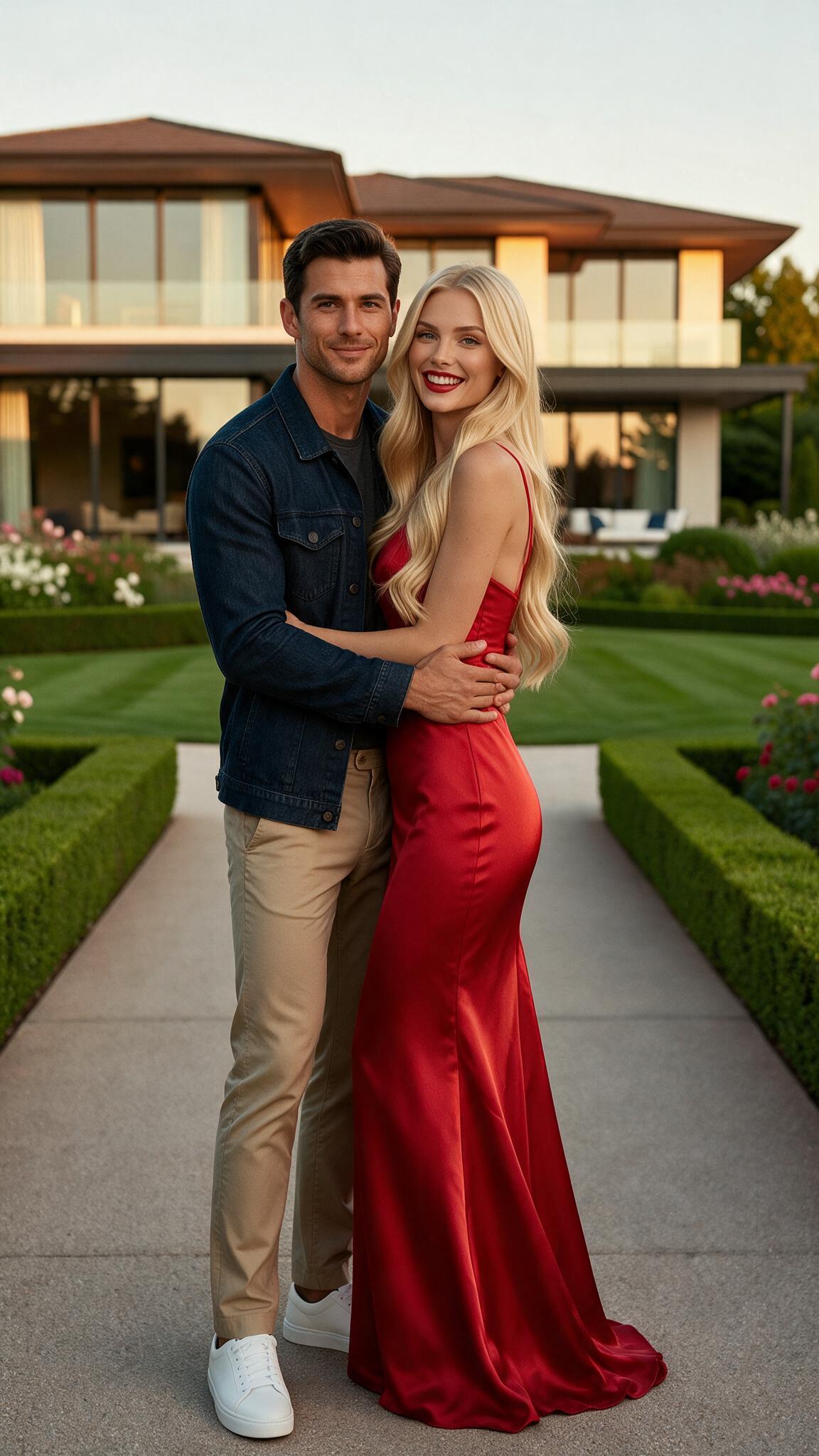
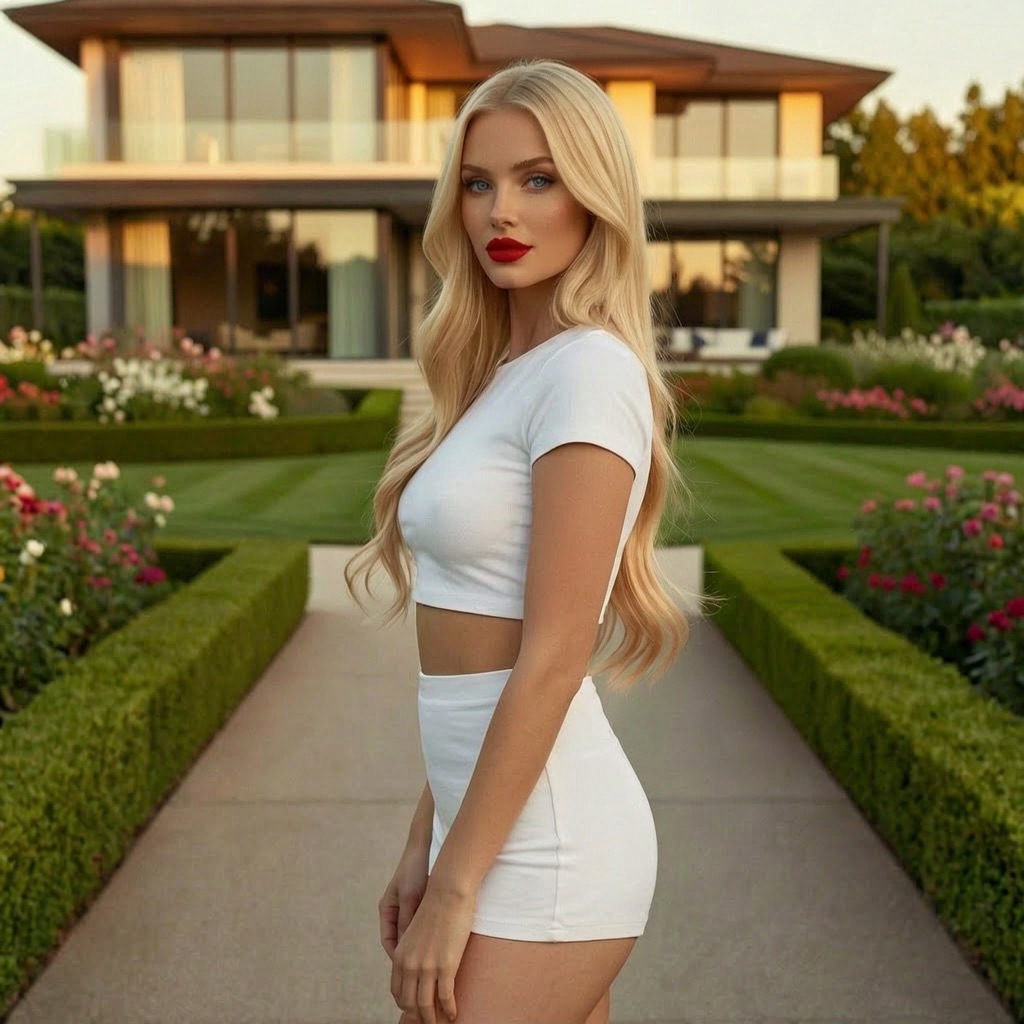
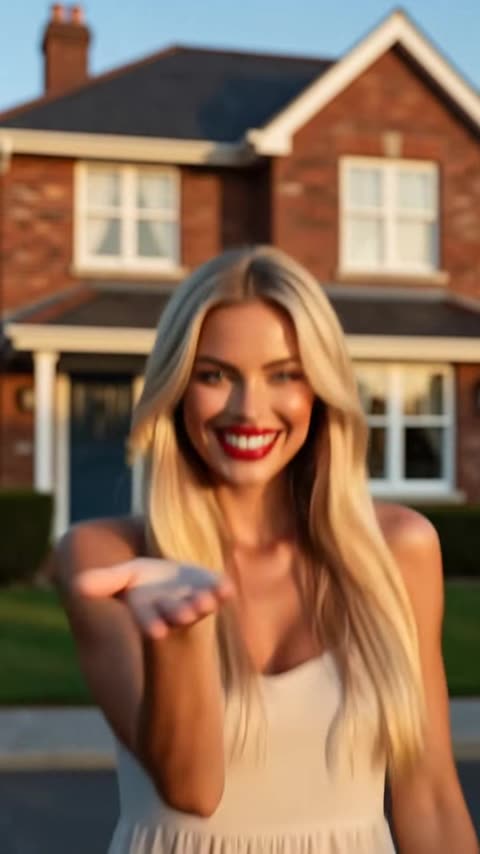
Input: the finished still imageOutput: the animated clip
Prompt examples that work
Subtle portrait
“She breathes naturally and gives a small confident smile. Her hair moves gently in the breeze. Slow cinematic push-in.”
The motion is limited, physically readable, and camera direction is explicit.
Product shot
“The camera orbits slowly clockwise around the product while highlights glide across the surface. Keep the product shape stable.”
It separates object stability from camera motion.
Action
“He turns toward camera, takes two steps forward, and stops. Handheld camera follows smoothly at chest height.”
The action has a short sequence and a clear stopping point.
Tips for better results
Use one primary action and one camera instruction per first attempt.
For portraits, begin with subtle motion before attempting full-body choreography.
Describe tempo with words such as slowly, gently, sharply, or rapidly.
Use an end frame only when the final state matters; unnecessary constraints can reduce natural motion.
Common mistakes to avoid
Asking the video model to redesign the character and animate complex action simultaneously.
Writing an appearance-only prompt that contains no motion verb.
Stacking several incompatible camera moves into a short clip.
Keep Smart Select enabled
Smart Select reads your prompt, the active tool, and attached media, then scores compatible models for the exact job. It usually saves credits by avoiding models that are a poor fit while improving the chance of a useful first result.
Continue your workflow
Build the result in stages instead of forcing every decision into one generation:
Yes. A clean final image gives the video model stable identity, anatomy, wardrobe, and composition to preserve.
What should an image-to-video prompt describe?
Describe subject action, environmental movement, timing, and camera behavior. Avoid repeating details already visible in the source image.
What does the optional end frame do?
It gives compatible models a target final image, useful for transitions, pose changes, reveals, and controlled start-to-finish animation.
Experimente grátis — 75 créditos no cadastro
Gere imagens e vídeos com os modelos 80+. O Smart Select escolhe e configura o ideal para o seu prompt. Não é necessário cartão de crédito para começar.