Continue an AI video beyond its final frame with natural action, consistent direction, and prompts that avoid abrupt scene changes.
PixOne Team6 min read
Extend Video adds time after the source clip ends. The final frames become context for what follows, so a strong extension prompt continues the same action or introduces one clear next event without abruptly rewriting the scene.
The creator rule that improves almost every result
Generate a short, coherent base clip first. Add one continuation, review the join, then extend again only if needed. Apply AI video editing and upscaling after the full timeline is structurally complete.
What is AI video extension?
AI video extension generates additional frames that continue from an existing video. The source establishes subjects, motion direction, camera behavior, lighting, and environment. The optional prompt tells the model what should happen next.
When to use it
Letting an action finish naturally instead of ending abruptly.
Adding a reaction, reveal, camera move, or quiet hold after the original clip.
Lengthening a successful animation without regenerating its opening.
Building a longer sequence through several controlled continuations.
How to use AI video extension in PixOne
Select the video to continue. Use a clip with a stable final moment and a scene worth preserving.
Choose Extend Video. The selected video becomes the continuity source.
Decide whether a prompt is needed. Leave it empty for a natural continuation, or describe one specific next action.
Generate the extension. Review the transition at the join as well as the new ending.
Repeat only when continuity remains strong. Several short extensions are easier to control than one overloaded narrative request.
See it in action
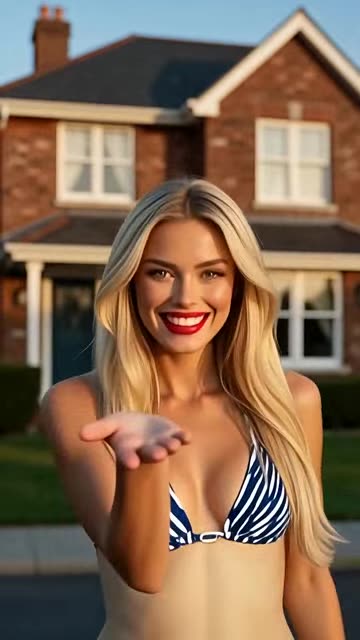
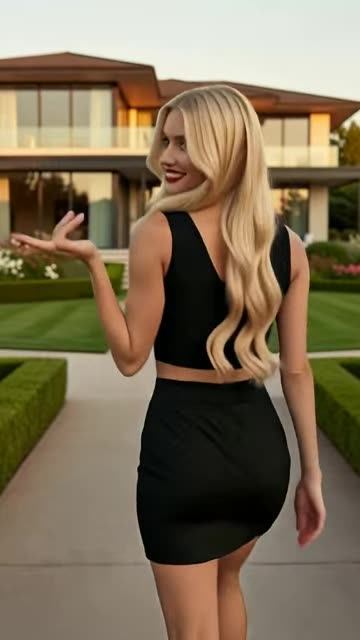
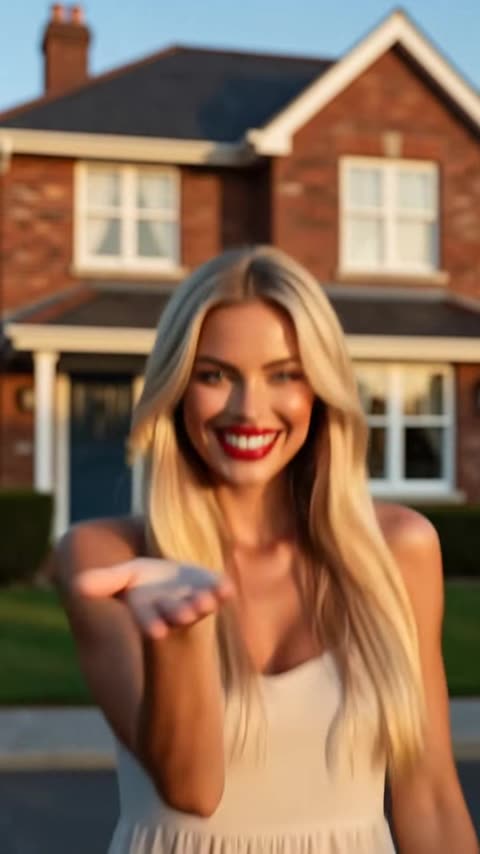
Input: the original clipOutput: the extended continuation
Prompt examples that work
Natural continuation
“She finishes turning toward the camera, smiles softly, and holds the pose.”
It continues existing movement and gives the extension a stable endpoint.
Camera continuation
“The camera continues pulling back slowly to reveal the full room.”
It preserves direction and introduces one achievable reveal.
Environmental continuation
“The wind grows slightly stronger and loose leaves drift across the foreground.”
It expands motion without changing the subject or scene.
Tips for better results
Continue the motion direction visible at the end of the source.
Use one next event and a clear stopping state.
Check the transition frame for jumps in identity, position, lighting, or camera angle.
Extend before upscaling so only the final combined clip receives resolution enhancement.
Common mistakes to avoid
Requesting a new location, costume, character, and camera setup immediately after the cut point.
Ignoring the direction and speed of movement at the end of the source.
Extending a weak draft instead of first choosing the strongest video variant.
Keep Smart Select enabled
Smart Select reads your prompt, the active tool, and attached media, then scores compatible models for the exact job. It usually saves credits by avoiding models that are a poor fit while improving the chance of a useful first result.
Continue your workflow
Build the result in stages instead of forcing every decision into one generation: