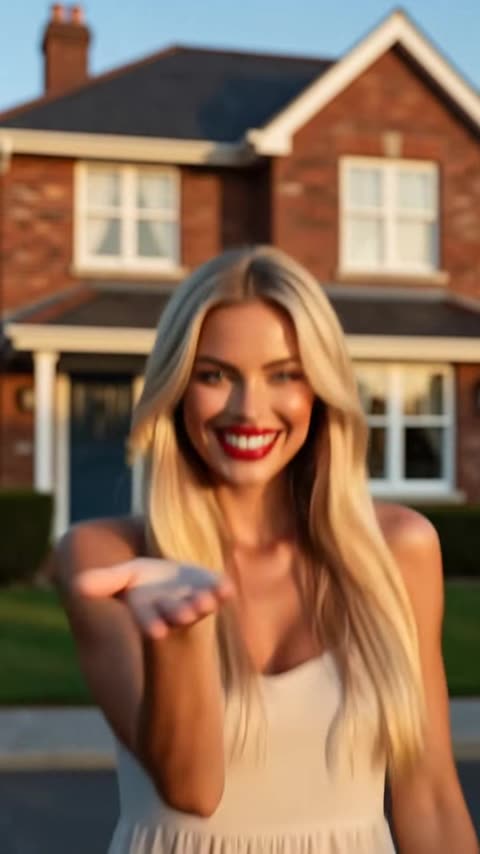
Transfer movement from a driving video to a still character with better framing, pose alignment, timing, and identity consistency.
PixOne Team7 min read
Motion Transfer separates appearance from performance. Your selected image supplies the character, while a driving video supplies movement and timing. It is ideal when a text prompt cannot describe choreography, gestures, or body rhythm precisely enough.
The creator rule that improves almost every result
Finish the character image first. Test a short, simple driving clip to confirm body and identity stability. Increase choreography complexity only after the basic transfer works, then upscale the selected result as the final step.
What is AI motion transfer?
AI motion transfer analyzes movement across a reference video and applies that performance to the character in a still image. The driving clip controls pose progression and timing; the source image controls identity, clothing, body appearance, and visual style.
When to use it
Dance, exercise, gestures, acting, and repeated body movement.
Reproducing precise timing that would be difficult to describe in text.
Animating a designed character from a real or generated performance clip.
How to use AI motion transfer in PixOne
Select a character image. Use a clear image with enough of the body visible to support the movement.
Choose Motion Transfer. The tool opens a required Motion video slot.
Attach the driving video. Choose a short clip with one clear performer and readable motion.
Add an optional note. The motion comes from the video; use the prompt only for a concise clarification when needed.
Generate and compare alignment. Inspect hands, feet, body orientation, identity, and motion continuity.
See it in action
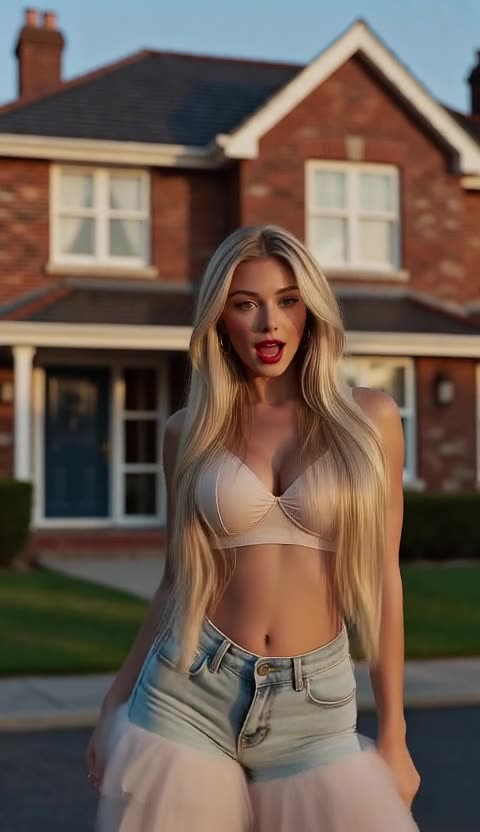
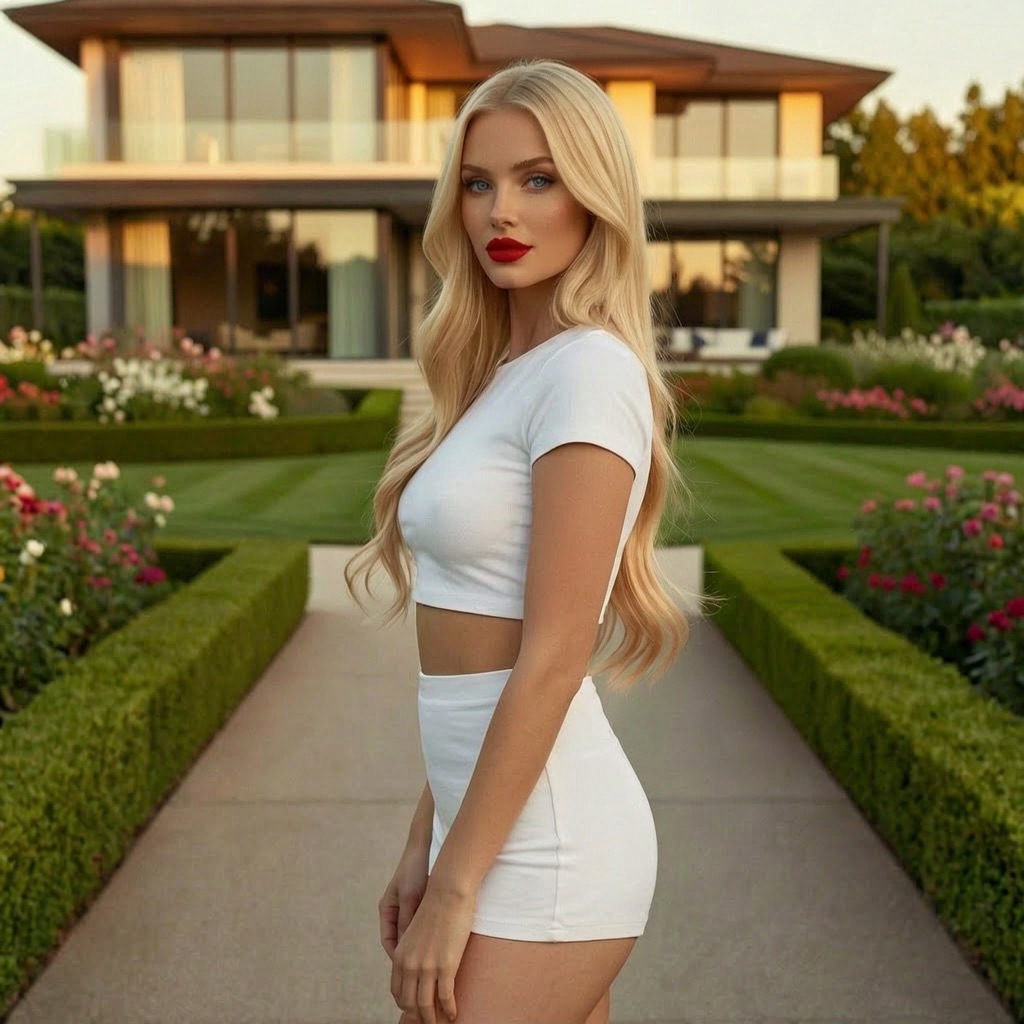
Input: the driving video supplies movement and timingOutput: the character copies the performance
Prompt examples that work
Identity note
“Keep the character identity and outfit stable throughout the movement.”
It supports the transfer without competing with the driving performance.
Framing note
“Keep the full body visible and the camera fixed.”
It clarifies presentation while leaving choreography to the video.
Tips for better results
Match full-body driving motion with a source image that also shows the full body.
Use clips with one performer, stable framing, and minimal occlusion.
Start with short, clean movements before complex spins or floor work.
Choose a source pose reasonably close to the driving video’s opening pose.
Common mistakes to avoid
Using a portrait crop for motion that depends on legs and feet.
Uploading a driving clip with rapid cuts, multiple people, or a moving camera.
Writing a prompt that contradicts the movement visible in the driving video.
Keep Smart Select enabled
Smart Select reads your prompt, the active tool, and attached media, then scores compatible models for the exact job. It usually saves credits by avoiding models that are a poor fit while improving the chance of a useful first result.
Continue your workflow
Build the result in stages instead of forcing every decision into one generation:
It is the reference clip that supplies motion, pose changes, and timing for the character in your selected image.
Does Motion Transfer need a prompt?
The prompt is optional because the driving video already defines the performance. Use a short note only for identity, framing, or presentation constraints.
Why are hands or feet unstable?
Common causes are low visibility, motion blur, occlusion, mismatched framing, or choreography that moves body parts outside the source composition.
무료로 체험 — 가입 시 75 크레딧
80+개 모델로 이미지와 영상을 생성하세요. Smart Select가 프롬프트에 맞는 one을 골라 설정해 줘요. 시작에 신용카드는 필요 없어요.