Modify an existing video with AI while preserving motion and identity. Learn prompt structure, workflow steps, and common video-edit mistakes.
PixOne Team7 min read
AI video editing changes the look or content of a clip from a text instruction. The source video already contains the people, camera motion, action, and timing, so the best prompt describes only the visual change you want.
The creator rule that improves almost every result
Start from a video whose motion already works. Change one visual property, review the whole clip, and apply the next change only to the best version. Upscale after editing is finished so credits are spent on the final candidate.
What is AI video editing?
AI video editing is video-to-video generation conditioned on an existing clip. It can restyle footage, change materials or colors, transform an environment, add a visual effect, or replace a visible element while following the source timeline.
When to use it
Changing clothing, colors, weather, lighting, or visual style across a clip.
Transforming an environment while retaining the original action.
Adding coherent effects that follow moving subjects.
Creating alternate versions of a successful animation.
How to use AI video editing in PixOne
Select a completed or uploaded video. The video remains the timeline and motion source.
Choose Edit Video. The editor keeps the prompt in the video workflow.
Describe only the change. Do not retell the person, pose, room, or movement unless that detail must change.
Keep the first edit focused. One transformation is easier to preserve consistently across frames.
Generate, inspect the full timeline, and iterate. Check the beginning, middle, and end—not only the thumbnail.
See it in action
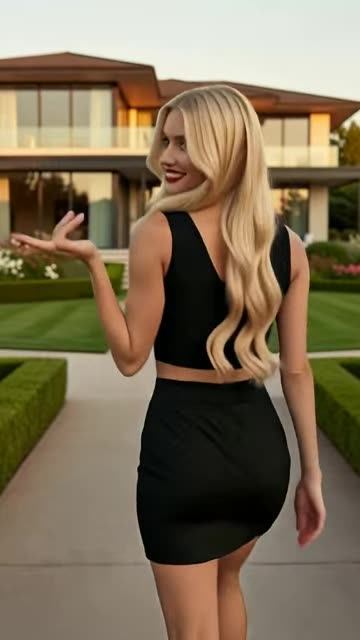
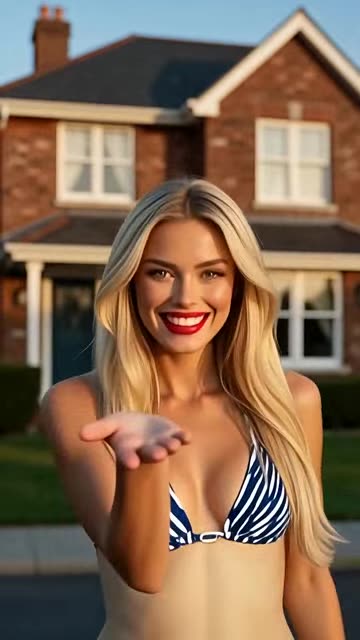
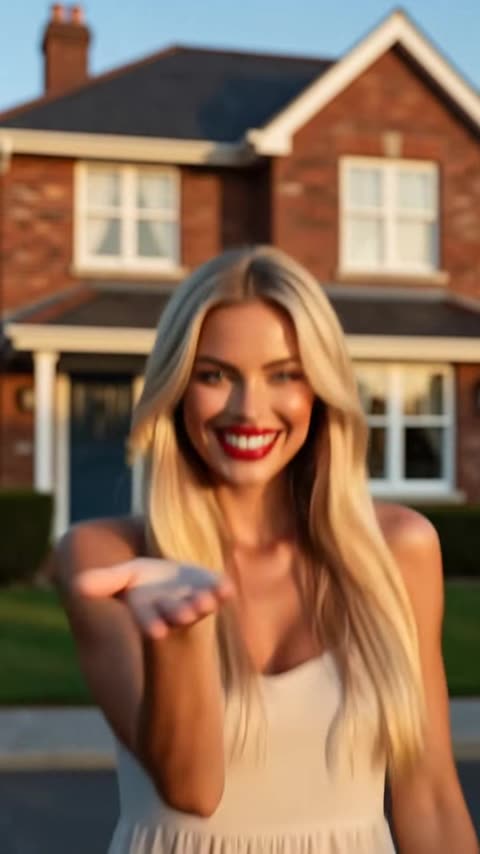
Input: the original clipOutput: after the AI text edit
Prompt examples that work
Color change
“Change the dress to deep emerald green throughout the entire clip.”
It names one visible edit and asks for temporal consistency.
Environment
“Replace the background with a neon-lit Tokyo street at night while keeping the original action.”
It changes the setting without over-describing the existing motion.
Style
“Render the full video as a hand-painted watercolor animation with consistent brush texture across frames.”
It defines one coherent treatment and explicitly requests consistency.
Tips for better results
Use throughout the clip or across all frames when consistency is critical.
Prefer a short clip with clear subjects for the first attempt.
Describe the desired final state, not a long explanation of editing steps.
Make one major transformation per pass, then continue from the best result.
Common mistakes to avoid
Adding preservation clauses for every visible source detail; the video already supplies them.
Requesting multiple scene changes and cuts in a single continuous clip.
Evaluating one frame while missing flicker or drift later in the video.
Keep Smart Select enabled
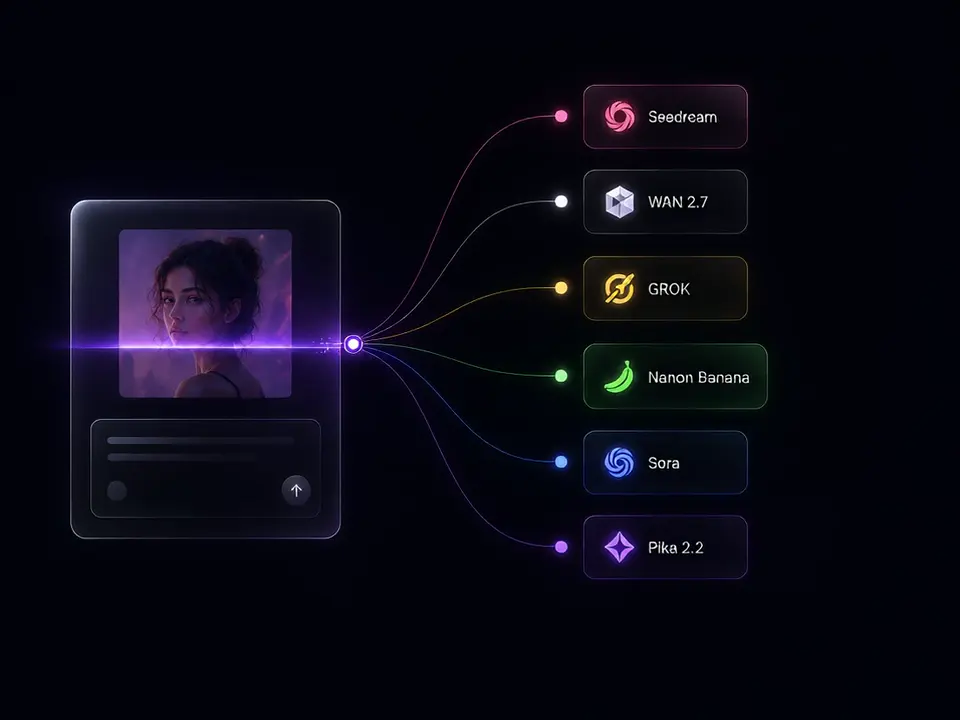
Smart Select reads your prompt, the active tool, and attached media, then scores compatible models for the exact job. It usually saves credits by avoiding models that are a poor fit while improving the chance of a useful first result.
Continue your workflow
Build the result in stages instead of forcing every decision into one generation:
Will AI video editing preserve the original movement?
The source video supplies timing and motion. Focused prompts are more likely to preserve them than prompts that request several structural changes at once.
Should I describe the person and scene in the prompt?
Usually no. Describe only what should change. Mention a source detail only when it identifies the edit target or must be preserved explicitly.
Can I edit an AI-generated video?
Yes. Select any completed video slot, choose Edit Video, and apply the next focused transformation.
Pruébalo gratis — 75 créditos al registrarte
Genera imágenes y videos con 80+ modelos. Smart Select elige y configura the right one para tu prompt. No se requiere tarjeta de crédito para empezar.