Learn how to edit an existing image with AI, preserve the parts you like, write precise prompts, and build complex changes one step at a time.
PixOne Team7 min read
AI image editing is most reliable when you treat it like a conversation with the picture. Start with one clear change, inspect the result, and continue from the best version. PixOne keeps every generation in the project so you can branch, retry, and refine without losing your original image.
The creator rule that improves almost every result
First establish the character and composition. Edit clothing next, then pose or physical characteristics, then lighting and polish. Animate only after the still image is convincing. This staged approach gives each model a smaller, testable job.
What is AI image editing?
AI image editing changes an existing picture from a natural-language instruction. Unlike text-to-image generation, the source image anchors identity, composition, lighting, and style. You describe the difference you want: change clothing, remove an object, alter a background, adjust a pose, or restyle the scene.
When to use it
Changing clothing, colors, materials, hairstyles, or accessories.
Adding or removing a specific object without rebuilding the whole scene.
Improving lighting, mood, season, background, or visual style.
Refining one stage of a larger image-to-video workflow.
How to use AI image editing in PixOne
Open an image. Upload a photo or select any completed image in your project.
Choose Edit. Open the Tools picker and select Edit. The prompt bar stays attached to the selected image.
Describe one visible change. Say what should change and, when important, what should remain unchanged.
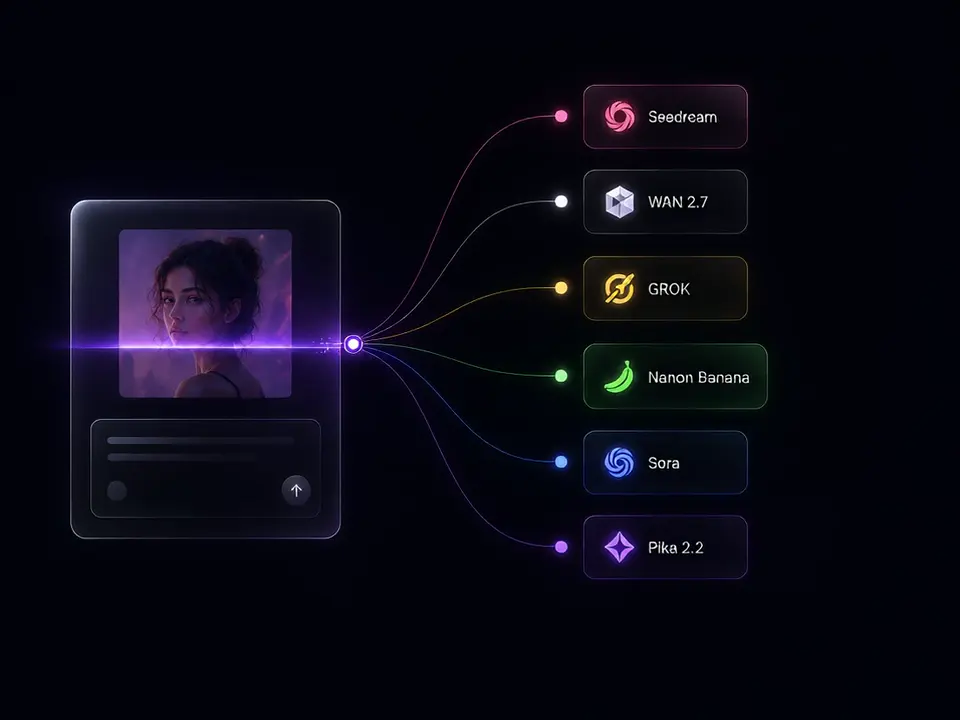
Leave Smart Select on. PixOne evaluates the edit, identity needs, content, and model capabilities before choosing.
Generate and continue from the best result. Select the new image, make the next change, and repeat until the scene is ready.
See it in action
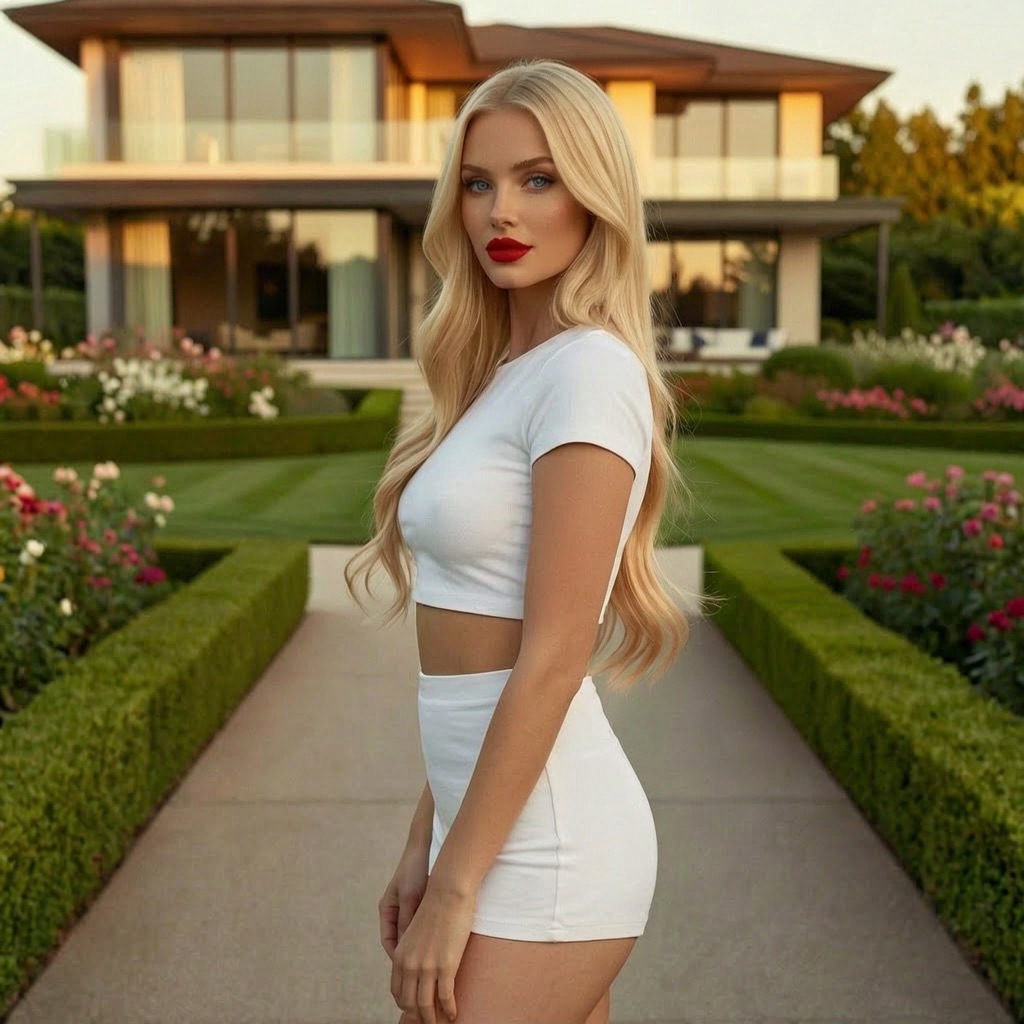
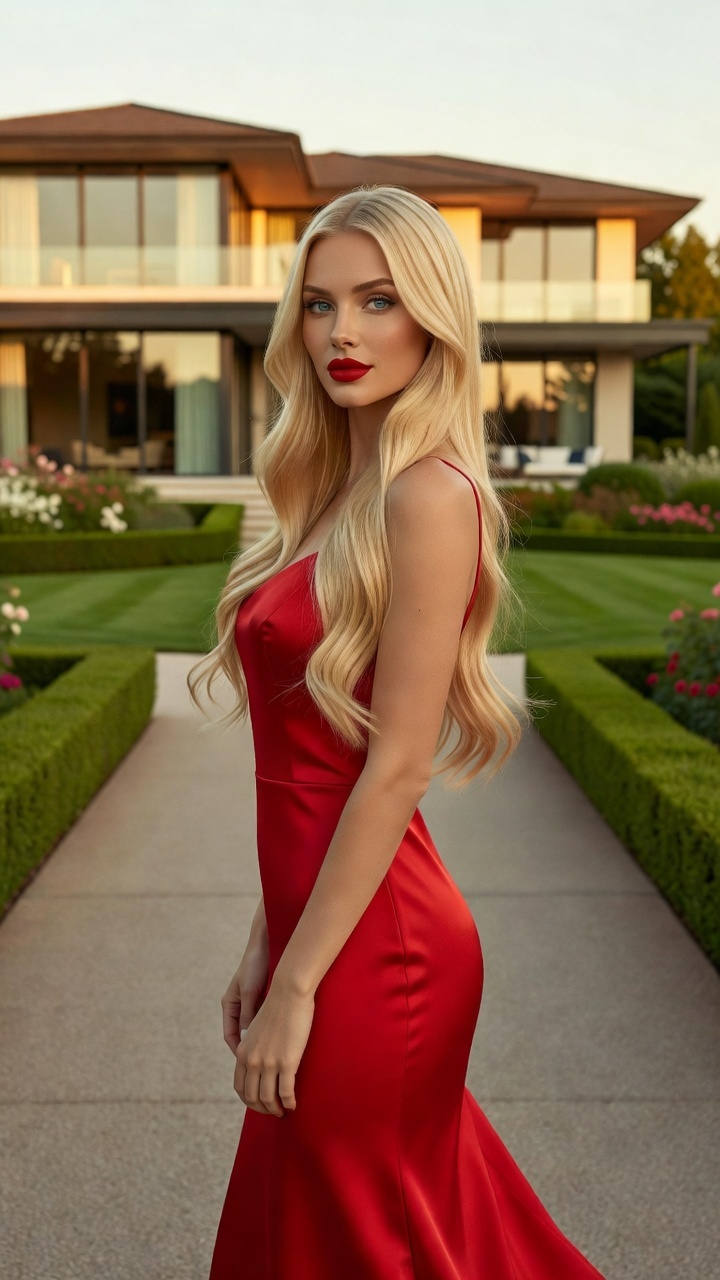
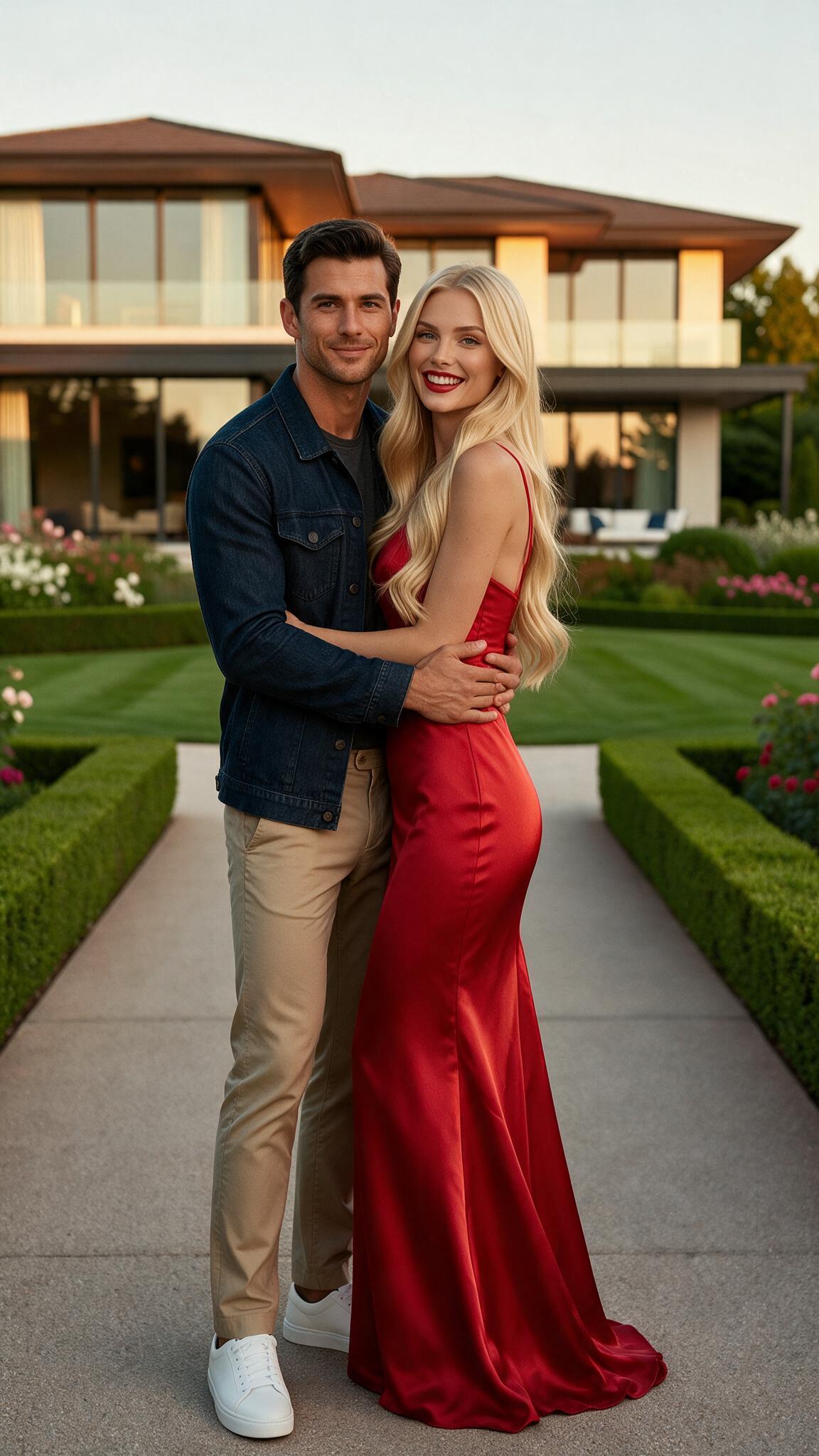
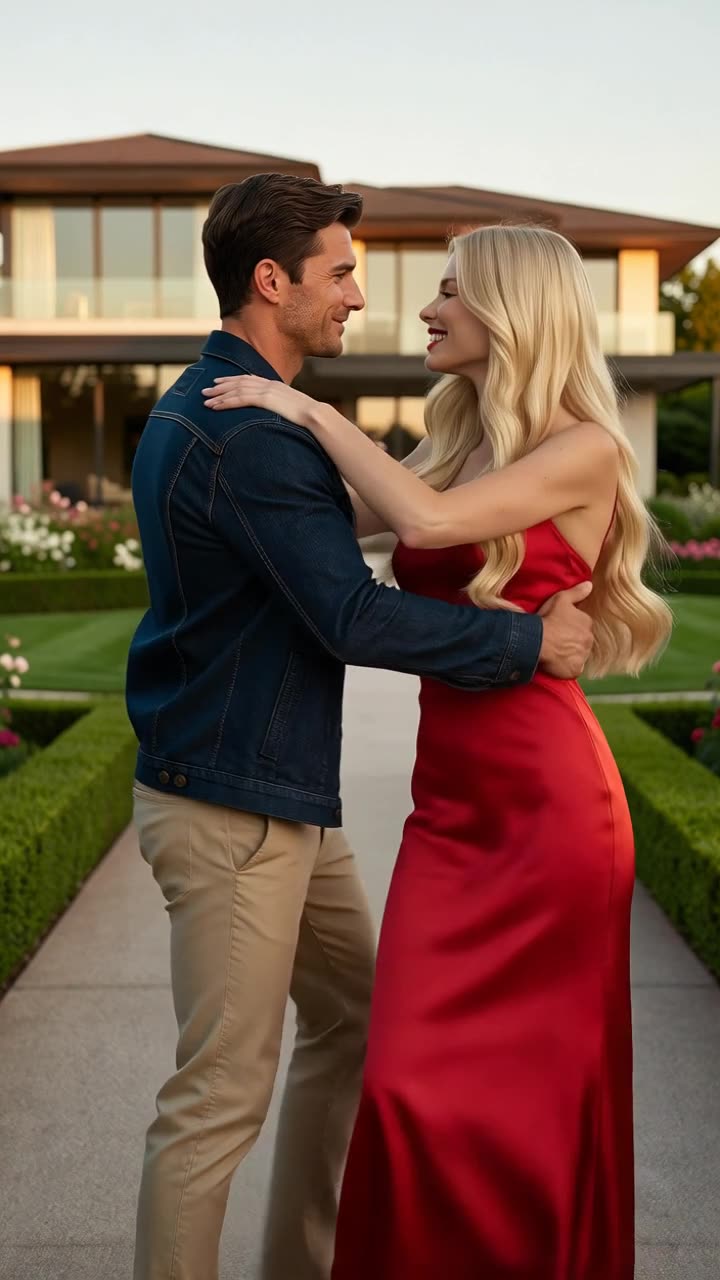
Input: the original imageOutput: the edited result
Prompt examples that work
Clothing edit
“Replace the jacket with a fitted black leather jacket. Keep her face, pose, background, and lighting unchanged.”
The requested change is explicit and the preservation instructions are limited to relevant details.
Background edit
“Replace the room with a warm modern loft at sunset. Keep the person and camera framing unchanged.”
It separates the subject from the environment being replaced.
Style edit
“Transform this into a cinematic 35mm film still with subtle grain and warm highlights.”
It names a coherent visual treatment instead of stacking unrelated style words.
Tips for better results
Use concrete visual verbs such as replace, remove, add, recolor, widen, shorten, or move.
Mention identity preservation when the same person must remain recognizable.
If a detail keeps changing, state it once as a constraint rather than repeating the entire source description.
Work from the cleanest result, not automatically from the newest result.
Common mistakes to avoid
Requesting a new outfit, pose, location, hairstyle, camera angle, and art style in one first edit.
Describing the whole source image instead of describing the change.
Using vague instructions such as make it better without defining what better means.
Keep Smart Select enabled
Smart Select reads your prompt, the active tool, and attached media, then scores compatible models for the exact job. It usually saves credits by avoiding models that are a poor fit while improving the chance of a useful first result.
Continue your workflow
Build the result in stages instead of forcing every decision into one generation:
It can preserve identity well when the source face is clear and the prompt explicitly asks to keep the same identity. Smart Select also favors models with strong identity preservation when that requirement is detected.
Should I describe everything visible in the source image?
No. The model already receives the image. Describe the change and only name source details that must remain fixed.
Why is a simple edit often better than one complex prompt?
Each additional change creates another opportunity for the model to reinterpret the scene. Sequential edits isolate failures and let you keep successful intermediate results.
Pruébalo gratis — 75 créditos al registrarte
Genera imágenes y videos con 80+ modelos. Smart Select elige y configura the right one para tu prompt. No se requiere tarjeta de crédito para empezar.